使用Vant完成DatetimePicker 日期的选择器
效果展示:代码展示:<template><div id="date_time_picker"><van-button plain type="primary" @click="showPopFn()">点击选择日期</van-button><van-field v-model="timeValue" p...
·
效果展示:
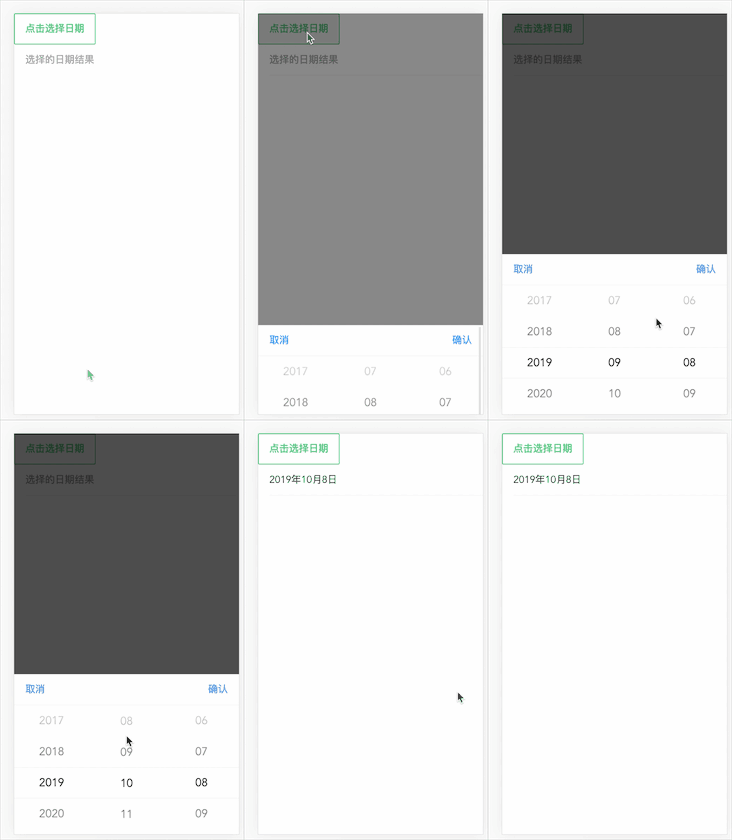
代码展示:
<template>
  <div id="date_time_picker">

    <van-button plain type="primary" @click="showPopFn()">点击选择日期</van-button>
    <van-field v-model="timeValue" placeholder="选择的日期结果" readonly />
    <van-popup v-model="show" position="bottom" :style="{ height: '40%' }">
      <van-datetime-picker v-model="currentDate" type="date" @change="changeFn()" @confirm="confirmFn()" @cancel="cancelFn()" />
    </van-popup>

  </div>
</template>

<script>
  export default {
    data() {
      return {
        msg: '',
        currentDate: new Date(),
        changeDate: new Date(),
        show: false, // 用来显示弹出层
        timeValue: ''
      }
    },
    methods: {
      showPopFn() {
        this.show = true;
      },
      showPopup() {
        this.show = true;
      },
      changeFn() { // 值变化是触发
        this.changeDate = this.currentDate // Tue Sep 08 2020 00:00:00 GMT+0800 (中国标准时间)
      },
      confirmFn() { // 确定按钮
        this.timeValue = this.timeFormat(this.currentDate);
        this.show = false;
      },
      cancelFn(){
        this.show = true;
      },
      timeFormat(time) { // 时间格式化 2019-09-08
        let year = time.getFullYear();
        let month = time.getMonth() + 1;
        let day = time.getDate();
        return year + '年' + month + '月' + day + '日'
      }
    },
    mounted() {
      this.timeFormat(new Date());
    }
  }
</script>

<style>
</style>
注意:如果是按需引入的话,记得在main.js里面引入相应的文件奥。
// main.js文件里面的部分代码
import {Button} from 'vant'
import { DatetimePicker } from 'vant';
import { Popup } from 'vant';
import { Field } from 'vant';


Vue.use(Button)
Vue.use(DatetimePicker)
Vue.use(Popup)
Vue.use(Field);
---------完。

一站式虚拟内容创作平台,激发创意,赋能创作,进入R空间,遇见同道,让优质作品闪耀发光。
更多推荐

 13
13 0
0- 0


 已为社区贡献1条内容

所有评论(0)